
Free Online Video Rotation and Flip Tool
Use the video rotation tool to turn a sideways clip 90 degrees left or right. For backward lettering, choose a horizontal flip and save the corrected MP4.
How to correct video rotation or a mirrored picture
- Choose the clip and check which edge should be at the top.
- Rotate left or right for sideways footage. Choose a flip to mirror the picture.
- Save the result and check that any lettering reads the right way round.
Read the correction from a visible clue
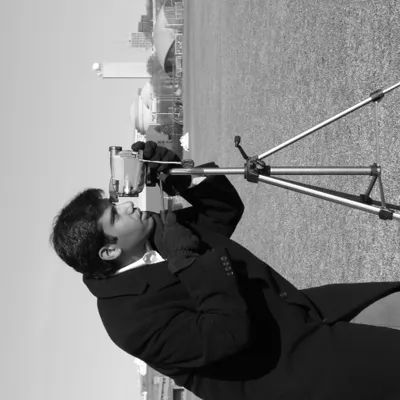
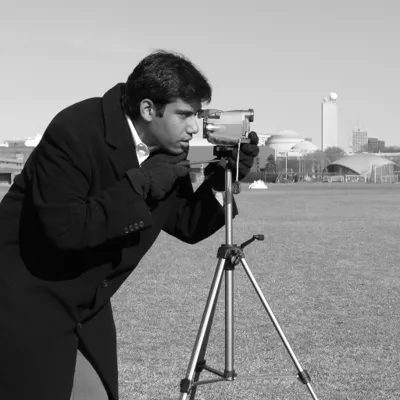
- An upright sign reads backward
- Flip the frame horizontally.
- A person's head points right
- Turn left by 90 degrees.
Use more than one clue when the shot contains reflections. A sign seen through a mirror may read backward even when everyone around it is correctly oriented. Check lettering on an object outside the mirror or compare the position of a familiar feature with another shot from the same location.
Identify which edge should become the top
Pause on a frame where you can tell which way is up. A person standing beside a doorway, a hanging sign or a line of readable text is more helpful than a close shot of water or sky. Imagine holding a printed copy of that frame in front of you. Which way would you turn the paper so the person stands upright? The right and left video rotation options make that same quarter turn across the entire clip.
If the top of a person's head points toward the left edge of the current picture, turn the picture right. If the top points toward the right edge, turn it left. Use the picture as it appears in playback. A phone held sideways during recording may still display an upright clip because its player reads an orientation tag. Check the source in the player that shows the problem before choosing a correction.
Distinguish a turn from a reflection
A horizontal flip exchanges the left and right sides of the image. It is useful when someone holds up a printed page and all the letters read backward while the page itself is upright. A vertical flip exchanges the top and bottom. Neither flip exchanges the frame width and height. Choose a video rotation when the scene is sideways and a reflection when the scene is facing the wrong way across one axis.
An upside-down picture can be deceptive. A vertical flip may make a person stand upright while leaving their shirt lettering backward. A half turn and a vertical reflection produce different images. This video rotation tool offers quarter turns to the left and right. For a true half turn, use an editor with a 180-degree option or apply the same quarter turn twice, checking the orientation after the second export.
Work out the dimensions before publishing
A quarter turn swaps the horizontal and vertical dimensions of the encoded picture. For example, a 1920 × 1080 landscape source with no preexisting orientation transform becomes a 1080 × 1920 portrait picture. A horizontal flip of that same landscape source stays 1920 × 1080. For material destined for a particular screen, check both the direction of the subject and the final shape of the frame.
Video rotation alone cannot change a properly upright landscape composition into an upright portrait crop. Turning that composition onto its side would make the people sideways. To create a tall excerpt from a correctly framed wide shot, use an editor with cropping or reframing controls. Choose a crop that follows the subject if they move across the original composition, then check text and hands near the sides for accidental cuts.
Inspect the exported file in the destination player
Look for a stationary reference near the start and another near the end of the recording. A camera operator can turn the phone during a take, leaving the first part upright and the last part sideways. One video rotation applies to every frame. If the needed correction changes halfway through, separate the sections and correct each section according to its own orientation before joining them in your editing project.
Play the actual download with automatic device rotation held steady if possible. A player can resize a portrait video to fit a landscape window, leaving empty space at the sides. That space may belong to the player rather than the exported picture. Change the window shape and watch whether the empty area changes. Inspect the file dimensions and check a word or a familiar landmark to verify the result.
Video rotation questions
Does turning my phone fix the saved file?
Rotating the device changes how you see the player. To share a corrected picture, select the appropriate video rotation, export the clip and open the downloaded file. A desktop display makes a convenient check because its orientation usually stays fixed while you compare the two versions.
Can I straighten a slightly slanted horizon?
The controls offer two 90-degree turns and two flips. A horizon tilted by only a few degrees calls for a fine angle control and usually a small crop to remove the empty corners created by straightening. Choose a long level reference such as a shoreline when judging the angle.
Will the sound move backward when I flip the picture?
Flipping or turning changes the spatial arrangement of the picture. The sequence of frames still runs forward and the original action keeps its timing. A spoken sentence should follow the same order after video rotation. Check the speaker's mouth against their words when reviewing the downloaded copy.
How do I undo an incorrect turn?
If you still have the original file, select it again and make a fresh export with the correct video rotation. This avoids repeatedly encoding the same frames. If only the turned copy remains, a quarter turn in the opposite direction restores the orientation while creating another encoded file.